
Get Call Logging Live in Days: Phone to CRM With RingPort for SMBs
SMBs: connect phones to CRM in days with a checklist, pilot plan, and RingPort playbook for automated call logging without IT.

How many customers are slipping away before you can answer?
Answer 4 quick questions and get a simple missed-call estimate for your business.
Answer with one tap. Contact details come after your result.
Here is the estimate.
Thanks. Your result was received.
You can connect phone to CRM systems in three main ways: a native marketplace connector, a CTI or softphone browser extension, or an API/webhook build. For most small businesses, the native or CTI route gets you click-to-call, auto call logging, and screen pop running within a day. Start by checking your CRM's app marketplace and your phone vendor's integration settings before building anything custom.
TL;DR:
- Native connectors are the simplest to set up but only work between specific vendor pairs; verify support before proceeding.
- CTI and softphone integrations embed calling directly in the CRM, offering seamless click-to-call and screen pop features for supported systems.
- Middleware or API/webhook solutions are necessary for legacy systems, custom fields, or when native integrations are unavailable, but demand more setup time.
- Proper field mapping and testing are crucial during setup to avoid duplicate contacts and missing call recordings; starting with a pilot minimizes widespread issues.
- Call recordings and transcripts require careful handling of permissions, storage limits, and encryption to ensure compliance and security.
Table of Contents
- What Are the Main Ways to Connect Phone to CRM?
- What Does Phone-CRM Integration Actually Deliver?
- How Do You Set Up a Phone-to-CRM Integration Step by Step?
- Which Setup Fits Your Business: Mobile, VoIP, or PBX?
- Why Aren't My Calls Logging or Recording Correctly?
- What Privacy and Security Rules Apply to Call Data?
- How Does RingPort Handle Phone-to-CRM Workflows?
- What SMBs Get Wrong About Phone-CRM Setup
- Skip the DIY Integration: Let RingPort Handle Call Logging for You
- Sources
What Are the Main Ways to Connect Phone to CRM?
Every CRM phone connection guide worth reading starts with the same question: which integration method actually fits your setup? There are four real paths, and picking the wrong one is how small teams end up with half-finished projects and a developer invoice they didn't budget for.
Native integrations are the easiest entry point. If your phone system and your CRM both list each other in their respective app marketplaces, you install the connector, authorize it, and you're logging calls within minutes. The catch is coverage. Native connectors only exist between specific vendor pairs, so if your phone provider isn't on your CRM's supported list, this option is off the table.
CTI (computer-telephony integration) and softphone setups embed the actual dealer inside your CRM interface. This is what makes click-to-call and screen pop possible. A rep sees an incoming call, and the CRM automatically surfaces that contact's record before the phone is even answered. CTI usually requires your phone system to support a softphone client, but once it's live, it's the smoothest experience for daily sales work.
Browser extensions solve a narrower problem well. If you just need click-to-call buttons next to phone numbers on your CRM pages, plus basic log syncing, a browser extension gets you there without touching your phone system's backend. RingCentral's unified CRM extension is a good example of how these embed calling directly into a CRM's web interface for teams that want a fast rollout over a deep one.
API/webhooks and middleware are the flexible, harder option. If you run an on-premise PBX, a legacy phone system, or need custom field mapping that no connector supports out of the box, this is where you land. Middleware tools handle the translation layer between your phone system's call events and your CRM's data structure, and platforms like Tario's CRM Sync can map activity to custom fields even when a native integration doesn't exist.
Here's the decision rule that actually holds up in practice:
- If a native connector exists for your phone vendor and CRM, use it first. It's the least maintenance and the fastest to deploy.
- If no native connector exists but your CRM supports CTI or browser extensions, go that route for fast rollout without engineering help.
- If you run custom fields, an on-prem PBX, or need two-way sync logic your CRM doesn't natively support, budget time for an API/webhook or middleware build.
Many SMBs find they do not require the fourth option. The mistake is assuming you do before checking the first two.
What Does Phone-CRM Integration Actually Deliver?
The features sound simple on paper: click-to-call, screen pop, automatic logging. What they change is how much time your team spends on data entry versus actual selling.
Click-to-call removes the manual dialing step entirely. A rep clicks a phone number inside a contact record, and the call launches through their connected phone system. It sounds minor until you count how many calls a busy rep makes in a day. Resco's research on mobile CRM tools notes that click-to-call also gives reps immediate access to caller history before they even pick up, which changes how a conversation opens.
Screen pop is the companion feature. When a call comes in, the caller's CRM record appears automatically. No searching, no asking "can I get your account number again." For a small service business fielding repeat customers, this alone can shift a call from transactional to personal.
Auto call logging captures the administrative data reps used to type in by hand: timestamp, duration, and outcome, written directly into the CRM record. A properly configured integration does this in real time or close to it, mapped to the right contact or opportunity, according to Tario's CRM Sync overview.
Recordings and transcriptions extend that further. Instead of a log entry that just says a call happened, you get a searchable transcript and a playback link attached to the record. That matters for training new reps and for resolving disputes about what was actually promised on a call.
Workflow triggers round it out. A missed call can automatically create a follow-up task. A completed call with a specific outcome tag can trigger an email sequence. This is where the integration stops being a logging tool and starts running part of your sales process for you.
The business case comes down to three things:
- Time saved on manual data entry, which for a rep making 20 to 30 calls a day adds up fast.
- Faster follow-ups, since a logged call with an outcome flag is easier to act on than a sticky note.
- Unified context across the team, so anyone picking up a client's file sees the full call history instead of fragments.
That third point is what sales operations teams increasingly call context-driven selling. The insight from Resco's mobile CRM research is that pushing call summaries and transcripts into a shared record eliminates duplicate work across a team and improves the quality of every follow-up, not just the next one.
Pro Tip: If you're evaluating whether integration is worth the setup time, track how many minutes your team currently spends per day on manual call logging. That number, multiplied by your team size, is usually the fastest way to justify the project internally.
How Do You Set Up a Phone-to-CRM Integration Step by Step?
Rushing this process is how teams end up with duplicate contacts and missing call recordings six weeks in. Work through it in order, and don't skip the testing phase even when the setup looks done.
-
Confirm admin access and supported numbers. You'll need administrator permissions on both the CRM and the phone system to authorize an integration. Check which of your business phone numbers are eligible. Some integrations only support numbers provisioned through specific carriers or plans.
-
Set a backup and rollback plan. Before you connect anything live, export your current contact and call history. If field mapping goes wrong during setup, you want a clean way to undo it without losing existing records.
-
Confirm your recording and consent policy first. Before any call data starts flowing, decide whether calls will be recorded and how you'll notify callers. This isn't a step to handle after the fact.
-
Authenticate the connection. Most integrations use either OAuth or an API key. OAuth is generally the safer choice for SMBs since it lets you revoke access without changing credentials across every system. Whichever method you use, review the permission scopes it requests. An integration asking for full account access when it only needs call logging is worth a second look. Quo's integration documentation points out that many marketplace connectors also require workspace owner or admin privileges just to enable the sync, so don't hand this step to a junior team member without the right access level.
-
Map your call data fields. Decide exactly which data points get written where. Timestamp, duration, call outcome, recording link, and transcript are the common five. Map each to the correct CRM field, whether that's a native "Activity" object or a custom field you've created. Skipping this step is the single most common cause of calls that log inconsistently.
-
Run test calls before going live. Place several test calls using known numbers and verify three things: the call appears in the CRM within an acceptable time window, it attaches to the correct contact record, and the recording link or transcript actually resolves. Test with numbers in different formats too, since inconsistent formatting is a leading cause of failed contact matching later.
-
Pilot with a small group first. Roll out to one team or a handful of reps before going company-wide. Watch the logs daily for the first one to two weeks. This is when mapping errors and permission gaps surface, and it's far easier to fix for five users than fifty.
-
Train reps on what changed. A quick quick-reference session goes a long way. Show reps where the click-to-call button lives, what screen pop looks like on an incoming call, and how to correct a mismatched log entry if one slips through.
Pro Tip: Run your pilot with your highest-volume caller, not your most tech-comfortable rep. If the integration holds up under real call volume for two weeks, it'll hold up for everyone else.
Which Setup Fits Your Business: Mobile, VoIP, or PBX?
The right integration path depends heavily on what phone infrastructure you're already running. Three scenarios cover most small businesses.
Field reps on mobile devices typically need a mobile CRM app rather than a desktop integration. Modern CRM mobile apps can log calls automatically, show caller ID pulled from the CRM database, sync activities in real time, and in some cases scan business cards or transcribe voice notes on the fly, based on features documented in Pipedrive's mobile app listing. If your reps are driving between appointments and taking calls on personal or company phones, this is the setup to prioritize before anything else.
VoIP and softphone users get the most complete experience from an embedded softphone inside the CRM, or a browser extension when a full softphone integration isn't supported. This is the path that unlocks click-to-call and screen pop most reliably, since VoIP systems generally expose the call event data those features depend on.
On-premise PBX systems are the trickiest scenario, and also the most common reason SMBs end up needing middleware. A legacy PBX doesn't speak the same language as a modern CRM, so you'll usually bridge it through a SIP trunk or a gateway device, then use a middleware layer to keep call records synced. This is more setup work, but it's often the only realistic path if replacing the PBX itself isn't in the budget this year.
A rough guide for deciding between a marketplace connector and a custom build:
- Use a marketplace connector when your phone vendor and CRM are both mainstream platforms with existing native support.
- Use middleware or a custom API when you're bridging legacy hardware, need two-way sync with fields no connector supports, or you're consolidating multiple phone numbers across locations into one CRM view.
Why Aren't My Calls Logging or Recording Correctly?
Most integration failures trace back to one of four causes, and all four are fixable without a developer.
Permissions and scopes weren't fully granted. If calls stopped logging after working fine initially, check whether a token expired or a scope was revoked during a permissions update. Reauthorizing the connection from the admin panel usually resolves it.
- Recheck the OAuth or API scopes granted during setup and compare them against what the integration currently requires.
- Reauthorize the connection when needed rather than assuming a one-time setup will hold indefinitely.
Contact matching is failing. This is almost always a phone number formatting issue. A call from a number stored as "(555) 123-4567" won't automatically match a CRM record saved as "+15551234567" unless your system normalizes formats. Standardizing all numbers to E.164 format (the international "+1XXXXXXXXXX" style) and stripping spaces, parentheses, and leading zeros eliminates most of these mismatches.
Recordings aren't showing up. Check your storage quota and retention settings first. Some phone systems cap recording storage and silently stop saving new calls once that limit is hit.
- Verify your account hasn't hit a storage or plan limit.
- Confirm recording is actually enabled at the number level, not just the account level.
Duplicate contact entries are piling up. This usually happens when a call creates a new contact instead of matching an existing one. Set clear dedup rules: match on phone number first, email second, and review merge candidates weekly rather than letting duplicates compound. Run a spot audit of 20 to 30 recent calls monthly to catch drift before it becomes a cleanup project.
What Privacy and Security Rules Apply to Call Data?
Call recordings and transcripts are sensitive data, and storing them in a CRM without a plan is a liability, not a convenience.
- Recording consent varies by jurisdiction. Some places require only one party's consent to record; others require both. Play a consistent notification message on every line regardless of which rule applies to you, since it protects you either way.
- Retention policies should be written down, not assumed. Decide how long recordings and transcripts stay in the CRM, document that timeline somewhere your team can reference, and set up automatic deletion if your CRM supports it.
- Access controls matter as much as storage. Apply least-privilege access so only reps and managers who need call history can see it, and keep an audit log of who accessed recordings and when.
- Encryption should cover data in transit and at rest. When evaluating any phone-CRM integration, ask the vendor directly whether call data is encrypted during transmission and while stored, and don't take a vague "yes" as sufficient.
How Does RingPort Handle Phone-to-CRM Workflows?
Some AI receptionist platforms approach this from the angle of local service businesses that don't have an IT team to lean on. Such platforms can run 24/7 automated call answering, convert voicemails to searchable text automatically, and route calls intelligently based on user-set rules, while logging that activity into your CRM without manual data entry. Voicemail-to-text automation alone cuts down the manual follow-up work that piles up after a busy day of missed calls.
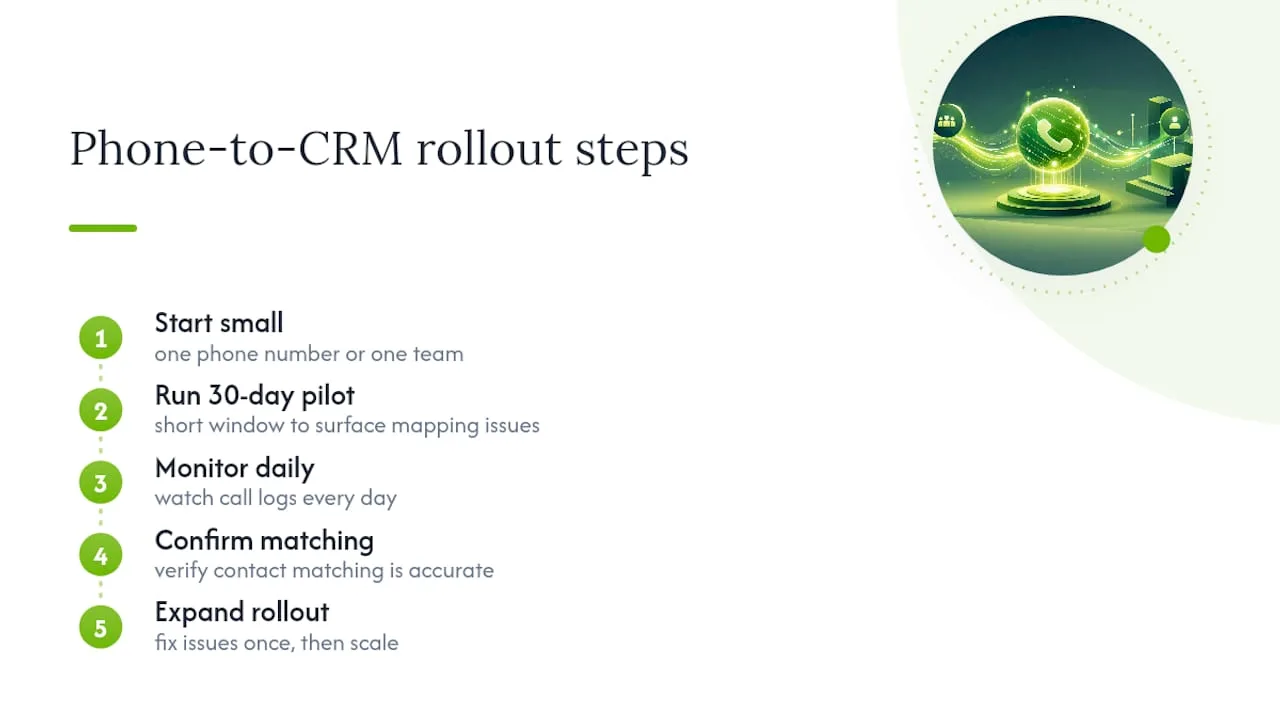
For a first 30 days, the advice mirrors what works across any phone-CRM rollout: start with one phone number or one team, watch the call logs daily, and confirm contact matching is accurate before expanding. A short pilot window surfaces mapping issues fast, which means you fix them once instead of unwinding a messy rollout across your whole team later. Smart routing and local presence dialing also tend to lift answer rates during that pilot, which gives you an early signal the integration is actually working, not just installed.
What SMBs Get Wrong About Phone-CRM Setup
Most guides on this topic treat the integration method as the hard part. It isn't. Picking native versus CTI versus middleware is a fifteen-minute decision once you know your phone vendor's marketplace listings. The part nobody plans for is the two weeks after go-live, when field mapping drifts, a rep's number doesn't match a contact record, or nobody notices that recordings stopped saving three days ago.
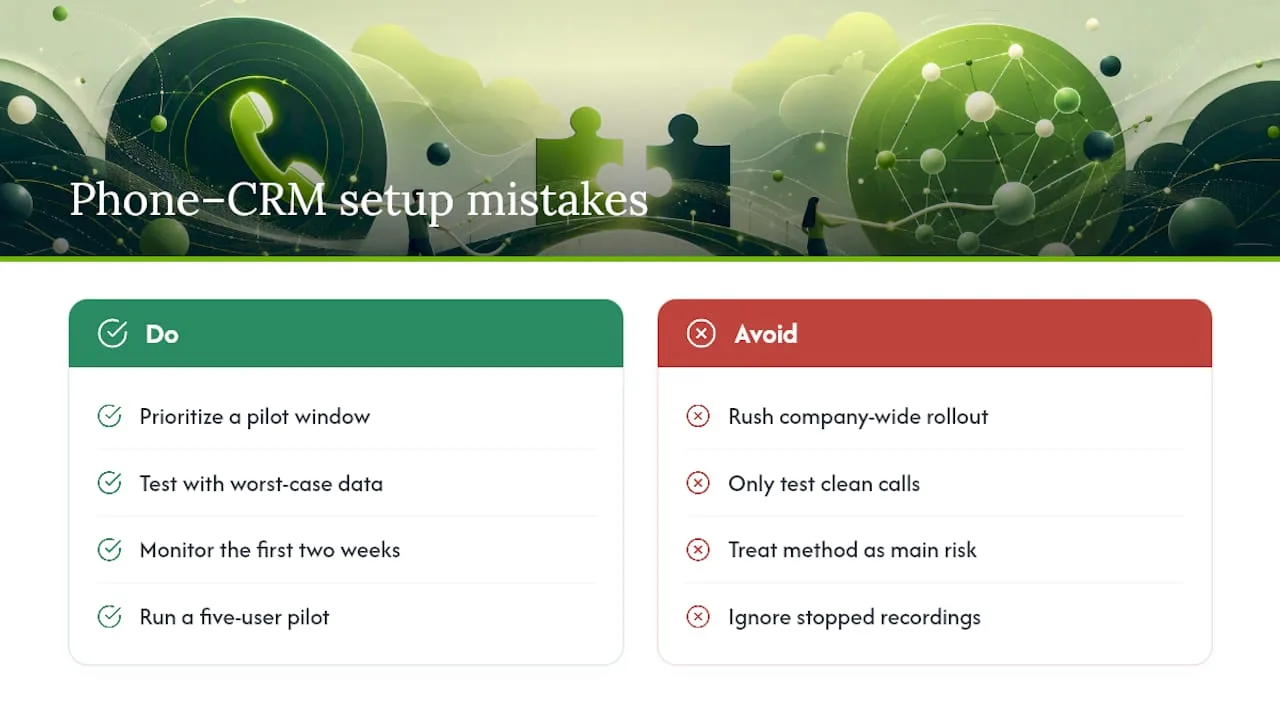
The conventional advice says "test before rollout," which is true but incomplete. What actually matters is testing with your worst-case data: inconsistent number formats, a contact with three phone numbers on file, a call that gets transferred mid-conversation. Clean test calls tell you the integration works. Messy ones tell you whether it survives contact with your actual business.
If you take one thing from this guide, prioritize the pilot window over the setup itself. A rushed integration that goes live company-wide on day one guarantees you'll be firefighting duplicate contacts and missing logs for a month. A slow, monitored rollout with five users catches ninety percent of that pain before anyone else notices it happened.
— Serhii
Skip the DIY Integration: Let RingPort Handle Call Logging for You
If you'd rather not spend a weekend mapping fields and testing OAuth scopes, some AI receptionist solutions are built to get you to automated call logging without touching your CRM's back end at all. They answer calls around the clock, convert voicemails to text automatically, route callers based on user-set rules, and log every interaction straight into your CRM, so the setup work covered above is largely handled from day one.
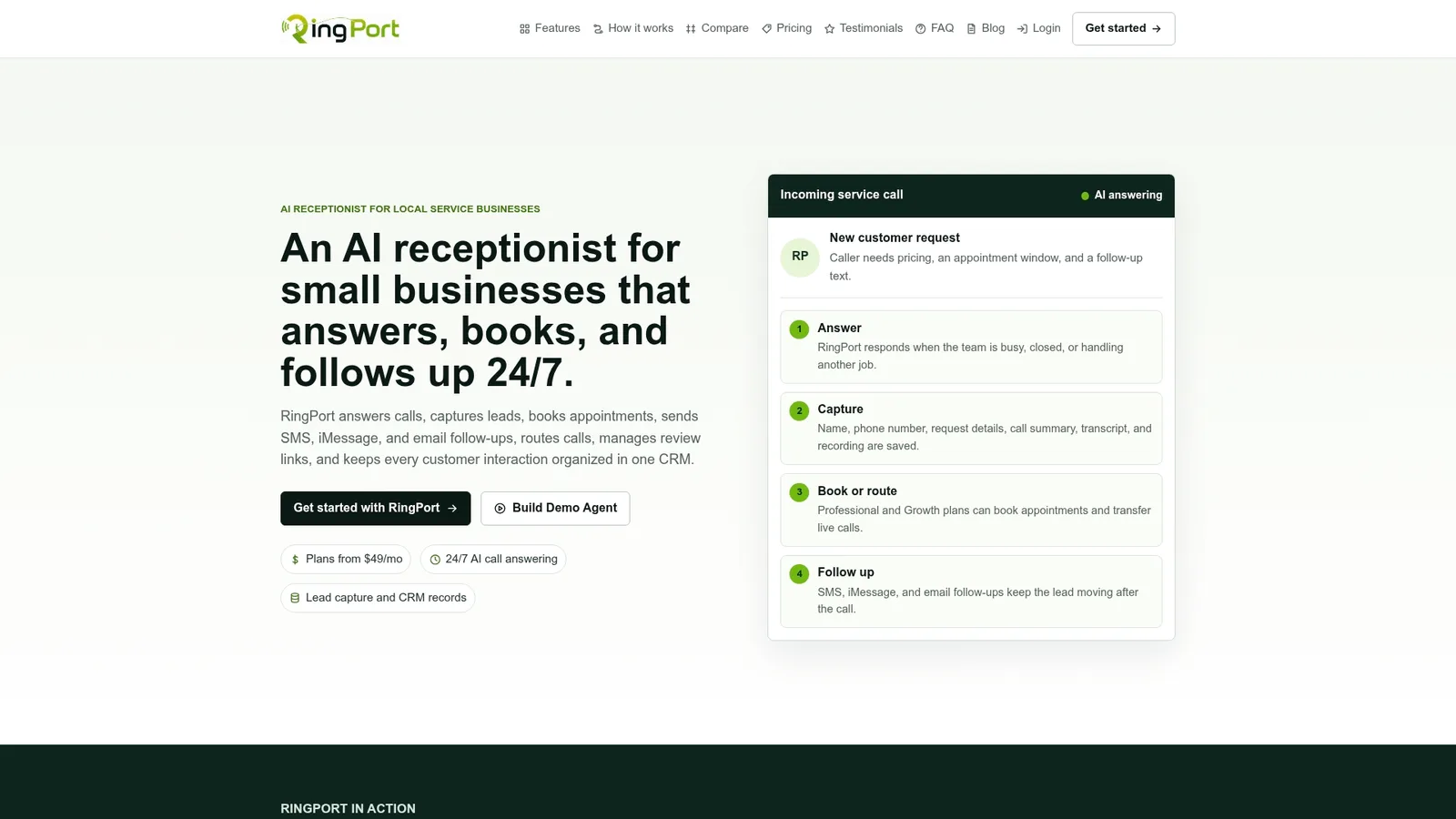
A typical small team may see the integration running within days rather than weeks when no middleware configuration or manual field mapping is required. During a trial, it's important to monitor whether calls are logging accurately, contact matching holds up, and follow-up tasks function as expected. Many service businesses can determine within the first week or two if the solution fits their call volume and team size.
If missed calls and inconsistent logging have been costing you leads, start with RingPort's Fast Agent and see how it handles your call volume in a real trial. You can also explore the full platform at Ringport to see which plan tier matches your team size.